
Duplicates in PrestaShop
There are several kinds of duplicates in PrestaShop, which can be created by mistake:
- Products: these are different products (different id_product) bearing, for example, the same name, or the same reference or barcode.
- Variations: these are two or more variants of the same item, made up of the same attributes.
- Properties: typically two attributes of identical color or size, or two features of the same value.
- Photos: there's nothing better to scare away a customer, than a site that displays the same photo several times in an item's data sheet, it shows a lack of seriousness and doesn't inspire confidence.
- Other types: duplicate default declinations, cover photo, root category, position...
In the first two cases, correcting duplicates involves identifying them and deleting all but one.
In the third case, you can't just delete them, as the properties may be associated with another object in the database. In this case, they need to be merged, i.e. all duplicates in the associations need to be replaced by one of the retained values, and only then all but the retained one need to be deleted.
This clean-up work cannot be carried out efficiently from PrestaShop's back office. It has no duplicate search function, let alone a merge tool.
Thankfully, Sitolog has integrated two automatic cleanup tools into Merlin Backoffice™, one for repairing duplicate products and declinations, the other for merging attributes or features.
Concerning photos, better safe than sorry. PrestaShop is not yet equipped to deal with this. If you associate the same image with a product ten times, PrestaShop will make ten identical copies, each with a different identifier, as if they were different files.
Merlin Backoffice's mass photo management module is the only one to natively integrate an anti-double photo solution, right from the creation stage.
For other types of photos, Merlin is designed from the outset to prevent them. When, for example, you declare a declination to be the default for a product, it searches for and converts the previously declared "default" declination into the normal declination.
And if you've created duplicate entries with another tool, for example with PS Backoffice, thanks to Merlin you'll once again be able to correct these types of duplicates with its database repair tool.
Repairing PrestaShop duplicates of products and variations (in French)
Very detailed presentation of how to use the duplicate repair module integrated into Merlin. Note that this tool is located in the import window, as this is often when it's most needed, but that it can also be used without importing.
- Identification of duplicate products.
- Select "All but one".
- Delete "All but one".
- Mass correction of duplicate key.
- Identification of duplicate declinations.
- Special case of products with the same name in different languages or stores.
Cleaning up duplicate attributes or features
A typical example where, as a result of importing files from different suppliers, we end up with multiple similar or very similar attribute or characteristic values, in this case seven shades of blue:
We can't just delete these values, because most of the time there are products or variations that use them.
So we need to do what's known as a grouping or merging. We've already produced tutorials explaining how to do this with Merlin:
Grouping characteristic values
Grouping attributes
Duplicate protection in PrestaShop for photos
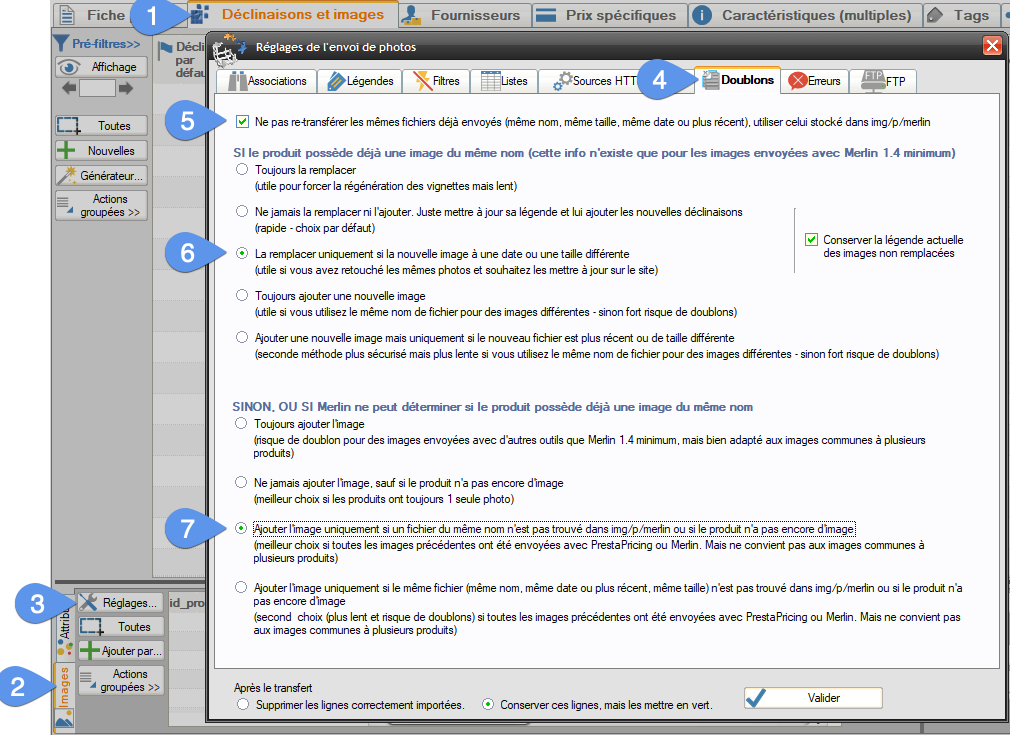
When you use our image upload tool, with the default settings, you can't mistakenly create duplicate photos.
In fact Merlin stores in a table added to the PrestaShop database, the history of all photo additions: the product ID, the name of the photo file, its size (in Kb) and its date. Thanks to this information, when you ask it to add a new photo to the same product, it can check whether that photo has not already been associated.
Not only does this avoid duplicate images, it also allows you to make photo replacements. Very useful for those who retouch or modify their photos and therefore wish to replace old versions with new ones while retaining their number and caption, so without having to delete them.
Default settings and photo replacement management
- Go to the "Declinations and images" tab.
- Then go to the "Images" sub-tab.
- Click on the "settings" button.
- Default choice not to create a copy and to replace photos if the file has been modified.
- Default choice for photos not added with Merlin (1.4 and later).
Bonus: remove repeated values in the order of PrestaShop categories, products and other lists
Few import modules, like Merlin, correctly handle the values of the "position" parameter, which determines the display order in the store. Most of the time, you end up with several items or objects with the same position value. Their order then becomes that of their identifier, i.e. the order in which they were created.
There are several methods for cleaning all this up:
- Changing the position of one of the elements in a list. This simple drag-and-drop operation recalculates and modifies the positional values of the other elements in the list, if necessary, to plug holes and remove duplicate values. See this other article showing how to order attributes.
- Mass re-ordering. Thanks to Merlin and its number series generator (in MagicEdit), you can in fact in just a few clicks, mass re-order all or a selection of elements, according to the sorting criterion of your choice, for example in ascending or alphabetical order of any heading. This also makes it possible to remove common values and gaps in series.
Example, to order sub-categories alphabetically en masse
.
- In the control panel, set the display order of categories to "Name"
- Unroll a list of sub-categories to be ordered and including the "Position" column in the configuration. Select them (be careful, only sisters).
- Don't click on the "position" button, useless, it's just for drag and drop.
- Instead fill in the values of the position column of this sister selection, with MagicEdit on the line selection (right-click in it), using its number series generator (from 1 or 0, increment of 1). Remember also to check "Delete all" in MagicEdit.
This will therefore replace the position values with 1,2,3 etc... in the order in which the categories are displayed, so in alphabetical order.
And as a complement, to do it en masse on the entire site in three operations:
- Make a backup of the database, for security .
- Unroll the whole tree
- Same operation, selecting all categories
- Use the "Repair database" tool and check "Remove holes and duplicates in category position values.
Click here to access the complete video tutorial showing how to perform mass position sorting and modification with Merlin.
Category's other articles How to repair and clean PrestaShop
-
How to repair a PrestaShop database
How to
Video
Repairing a PrestaShop database is often necessary after a crash, but seems impossible to many, yet discover how easy it is to do without any special knowledge with the Merlin Backoffice module