
31/10/2023
Franck Bugnet
Category
Guide
How to repair and clean PrestaShop
Your PrestaShop store is broken, the site displays blank pages, administration has become very slow... don't panic, this cms is quite fragile, but it's always possible to repair PrestaShop. Sitolog shares its experience.
Fixing PrestaShop white pages
The PrestaShop forums are full of testimonials from e-merchants in a panic because overnight, one or all of the site or admin pages no longer display. Instead, all you get is a blank screen. Every minute that passes means a loss of potential customers.
What's going on?
The white screen scares customers away, but it's just the tip of the iceberg. It just indicates that the script displaying the page content couldn't execute properly.
The possible causes are almost infinite: server block or crash, javascript error, network problem, broken database with missing or duplicate info,...
Of course, no display gives you any information, which is why you feel so helpless. You have to make the monster talk :-)
PrestaShop debug mode to get more info on the cause of the error
The key to correcting a failure is to understand what caused it. To do this, you need to try and get more information from the system, ideally by displaying an error message rather than a blank screen.
That's what this option is for, which is not activated by default.
Enable debugging in PrestaShop 1.7:
- Go to the "Configure" section of the menu and click on "Advanced settings".
- Then click on "Performance".
- Flip the switch to yes.
- Save, it's easy.
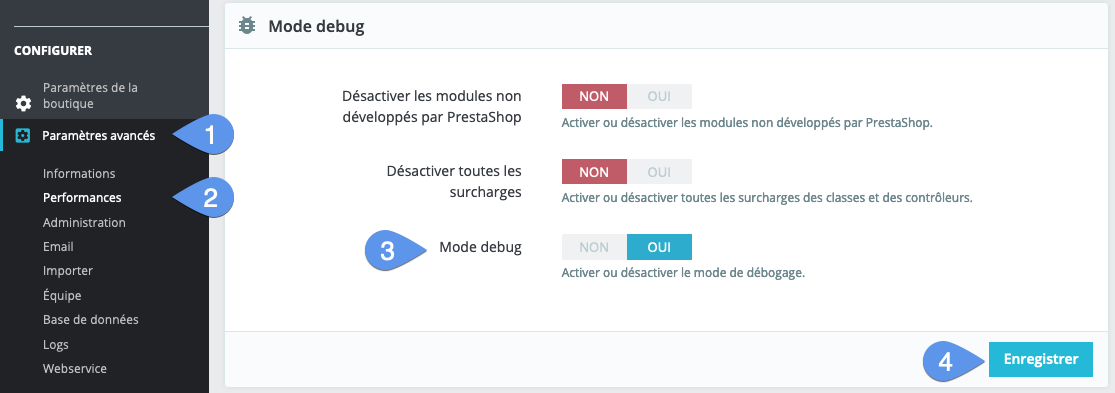
From this point on, PrestaShop will be more talkative and will indicate errors (see also notices according to other settings in the same file) in this form:
You've done the easy part. Now it's time to try and understand the meaning of the error message and deduce the next action.
This isn't always the case, but frequently the message will contain the name of the offending module, in which case all you have to do is temporarily disable it until you can debug it on a test site.
Sometimes you'll find the name of the file that crashes, or even the line of code in question.
But more often than not, all you get is a generic message, such as Error 500, or some gibberish incomprehensible to the neophite. In such cases, we recommend two methods (see below for more details): block deactivation of non-standard modules and overrides, change of theme, then if nothing works, look for more information on the Internet and forums based on the text contained in the error message. As a last resort, turn to a professional or reinstall PrestaShop.
Enable debugging in PrestaShop 1.6 or older:
In older versions of PrestaShop, you cannot activate debug mode from the administration interface. To do so, you need to modify the value of a parameter directly in one of the configuration files.
- The file to modify: "defines.inc.php" which is located in the "config" directory of PrestaShop files on the server.
- The tool to use: any word processor will do, such as notepad on Windows.
- How to access the file: you need to use an ftp access tool to download it to the PC and upload it back to the server after modification. The best-known freeware is "Filezilla Client". When installing this software, be sure to read the fine print, as it often simultaneously installs extensions in your browser that you don't need and which will then spam you.
- How to configure the FTP client: you'll need three pieces of information, the url or address of your FTP server, which must be included with your hosting, your "ftp user" and ftp password. Your web host can provide you with this information.
- Once you've connected to your site via ftp, go to the "config" folder.
- Right-click on the "defines.inc.php" file.
- Click on View/Edit.
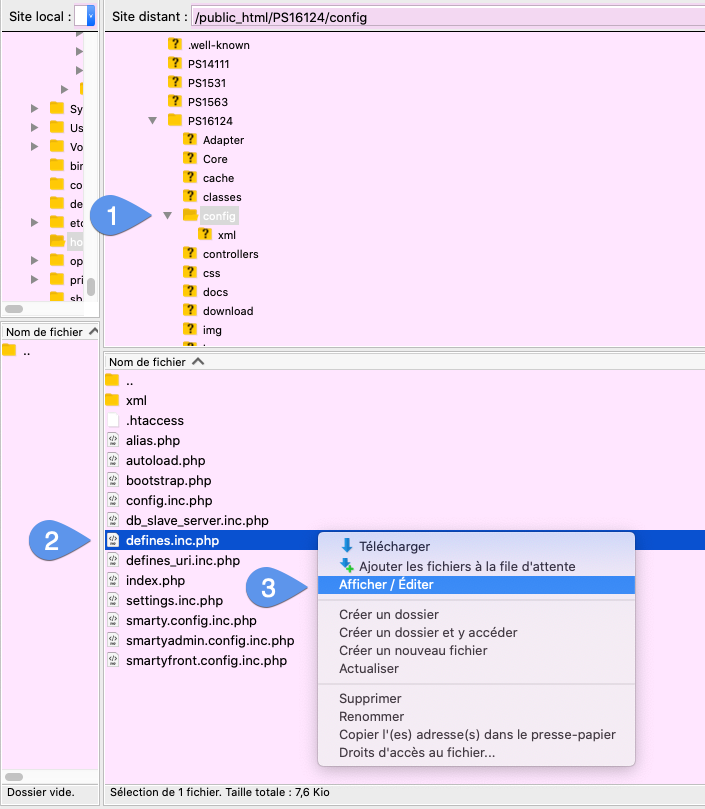
Once the file is open in a text-editing tool, locate the line "define('_PS_MODE_DEV_', false);" at the start of the text and replace the word "false" with the word "true" in that line.
* @author PrestaShop SA <[email protected]>
* @copyright 2007-2017 PrestaShop SA
* @license http://opensource.org/licenses/osl-3.0.php Open Software License (OSL 3.0)
* International Registered Trademark & Property of PrestaShop SA
*/
/* Debug only */
if (!defined('_PS_MODE_DEV_')) {
define('_PS_MODE_DEV_', true);
}
/* Compatibility warning */
Disable non-standard modules
In 90% of cases in fact, a blank page is caused by faulty code in a module, or a conflict between two plugins. In many cases, it's just a matter of finding out which one it is.
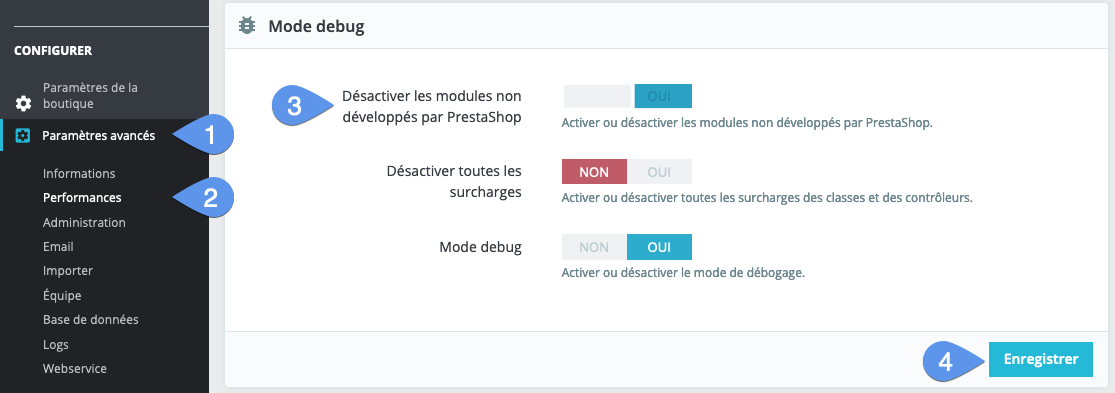
As a first step, you can deactivate them all at once to test this hypothesis. In PrestaShop 1.7, this is very easy to do:
- Go to the "Configure" section of the menu and click on "Advanced settings".
- Then click on "Performance".
- Flip the switch opposite "Disable modules not developed by PrestaShop"
- Save, this is pretty radical, as it's likely to disable quite a few features that are essential to you. So quickly deactivate this option once the verification test has been completed.
Once you know that the problem does indeed come from a module, proceed in stages:
- Deactivate half of the non-standard modules.
- If the problem persists, reactivate them and deactivate the other half.
- Then disable only a quarter, and so on, until you find the culprit.
Definition: an overload is a piece of programming that the developer asks PrestaShop to use instead of the native code. This makes it possible to modify PrestaShop's operation without touching PrestaShop's script.
Disable PrestaShop overrides
With PS 1.7, this happens in the same place, in the "Performance" section of "Advanced Settings":
.png)
Switch to default theme
A display bug, a blank page or even a malfunction, slowness or even poor referencing by search engines like Google, can also come from the theme. Indeed, many themes do more than just change colors, font sizes and images, they have their own scripts and sometimes even integrate additional extensions.
So it's often a good idea in the troubleshooting process to put the site into maintenance and temporarily switch the site to the default PrestaShop theme. Yes you'll temporarily lose your beautiful design, but your site will be running on tried and tested software.
If everything works properly again with the default theme, you'll know that the source of the bug is to be found in your theme.
Advanced debugging
Sometimes, things are more complex, and neither deactivating extensions, nor overloads and the theme can find the remedy.
If the bug is indeed in the code (and not in the data itself, see next praragraph), then you either need to turn to a professional, or learn to use debugging tools.
In 2021, most browsers have a developer mode already built in, but hidden.
For Firefox, for example, all you have to do is click on the F12 key to open the developer console.
Using these kinds of tools is well beyond the scope of this article. Basic and sometimes advanced technical knowledge of PHP, CSS, javascript, HTML, Smarty and Symfony is required for this type of mission.
But everything can be learned if you're motivated and patient. The web is full of tutorials (Franck's personal note: I've been there, being 100% self-taught in Internet technologies).
We advise you to start by learning how to modify CSS classes (styles) with these browser troubleshooting consoles. This will also help you gain autonomy and be able to make slight display modifications to your store without paying a webmaster each time.
Bulk repair PrestaShop database
A breakdown in a PrestaShop store, or unaccustomed slowness, is not always due to a programming error, but very often due to the data contained in the database.
There are many examples of this:
Subcategories are no longer displayed: the breadcrumb trail is broken in the database, or information is missing.
Some products are missing: the relationships between categories and products are broken.
Products are displayed in duplicate: several photos are declared as the cover photo.
Prices including VAT are incorrect: errors in tax configuration or missing rules.
Selection of declination attributes does not work correctly: JS problem or data structure problem.
The site is very slow: multiple possible causes, but cleaning up the database never hurts.
Customers can't find the right items: the index may need rebuilding.
Google is referencing the site incorrectly.
To repair this type of problem, there are several solutions: you can either use a specialized PrestaShop module, or the database repair tool natively included in Merlin Backoffice software, our Swiss army knife of bulk work. See this other article dedicated to this technique:
What to do if I don't make it
Think about the PrestaShop forum
Before launching an SOS, always do some preliminary research on the forum, just to be sure that the subject hasn't already been dealt with 10 times.
If you describe the bug well, with as much detail as possible, screenshots, you'll have every chance of being helped or put on a track you haven't yet explored, if someone has already encountered and solved it.
If, on the other hand, you post a request for help without any details, in the style of "I've had a blank page displayed since yesterday, thanks for your help", there's little chance that this bottle in the sea will find anyone to respond.
Search the internet for words contained in the error message.
Indeed in more than half the cases, someone will have encountered the same errors before you and perhaps taken the time to share somewhere the solution they found. If not, get in on the act and be the first to share your discovery once the problem has been solved.
Should you update PrestaShop in the event of a severe outage?
With most software, the answer would be yes, but with PrestaShop, changing versions won't be our advice (true at the time of writing, in 2021, let's hope that changes over time), as every PrestaShop migration still too often comes with its share of new bugs or difficulties.
Three secrets of good troubleshooters, whatever the field
(Editor's note: Franck has 25 years' professional experience in the world of professional IT support)
- Decompose the problem into sub-sets that can be isolated and tested or replaced separately, step by step, in order to identify "the most likely cause". When the most likely set is identified, break it down into smaller subsets to refine the identification of the most likely sub-cause. You can work in this way, from a global to a macro view, right up to identifying the erroneous or missing line of code or data, even when you're not an expert in the field concerned. It's not a question of knowledge, but of method and rigor. Experience helps you move faster, but it's not essential, and can be replaced by advice or reading.
- Always start by asking the question "what changed, was modified, could have happened etc, before the breakdown occurred". When we question our customers in this way, they always start by answering "nothing", but this is almost always wrong, a breakdown never happens by itself by magic, there is always something that has changed somewhere just before (or some time before, because we don't necessarily notice it right away). Once you've found the answer to that not-so-easy question, you're always very close to the solution.
- An intermittent failure can only be corrected when we manage to find a way, a process, to reproduce it systematically. So with this type of failure, don't waste your time modifying random stuff hoping to solve the problem - you'll only make things worse - but look for a method to reproduce it (ask yourself "what was I trying to do before it crashed?").
Need help, how much does PrestaShop support cost?
WARNING: a webmaster is not necessarily a good repairman. A webmaster knows how to make displays, see entire sites, but doesn't always have the technical skills to do javascript or Ajax debugging, for example.
The price of a technical intervention is quite variable.
With PrestaShop, you'll be dealing with specialists, but at a high price, around 150€ht for 3/4 hours, with no guarantee of results.
With specialized freelancers, count between 50€ht and 80€ht per hour of intervention. The most expensive is not necessarily the best. One piece of advice for choosing the right freelancer: always seek the advice of other e-merchants who have already worked with that freelancer.
Does Sitolog provide this type of service?
We have done so in the past for several years, but today we prefer to reserve our time for the free support granted to Merlin Backoffice users.
On the other hand, if you can't find any competent resource to troubleshoot your PrestaShop, even by questioning the PS "Paid Services" forum, contact us privately, and we'll put you in touch free of charge with one or more specialists we've selected for their competence and professionalism.
Some bugs have been known about for years and haven't been fixed, what can you do about it?
It's true that some PS faults take a long time to be addressed, but in all honesty the situation has improved markedly in recent months, with a better relationship with the expert community (we're thinking of the FOPs in particular, the "Friends Of Presta") and definite efforts to deal with recurring problems (such as tax management in reimbursements).
Other shortcomings are due to historical design choices, such as admin crashes when a product has more than a few thousand variations or too many categories. But it's also because of this (or thanks to it) that Merlin Backoffice was born. With a totally different technical design (heavy client under Windows or Mac with Parallels Desktop), it suffers none of the limitations inherent in WEB or SAS online applications.
So if your PrestaShop admin is slow or crashes often, and you're wasting more time than anything else administering your catalog, consider testing the alternative management solution with Merlin Backoffice. You may well be surprised and love your PS store again. As a reminder, it's risk-free thanks to our automatic 15-day "Satisfied or your money back" guarantee, renewable once on simple request.
Run an SEO audit once the store has been repaired.
This is particularly important if you've run repair scripts or done a partial or complete restore.
It's better to anticipate, rather than react later, often too late, when the site has plummeted in the SERP (SEO positioning).
There are quick and easy points to check regarding products and categories, with the help of the Merlin Backoffice application, such as:
- That all products have one main image and one only.
- Que les produits déclinés ont tous une déclinaison par défaut et une seule
- That product and category SEO fields are not empty: title tags and meta descriptions.
- That there are no duplicates in meta fields.
- That there are no orphan products.
- That the breadcrumb trail is correct.
- Check that there aren't too many external links in the descriptions (external URL).
- Check that internal linking urls are working properly.
- Take advantage of this to lighten the hosting and base.
How to carry out an SEO diagnosis
.SEO audit techniques is pretty straightforward, you just need to know how to use either the pre-filters or the advanced search tool in Merlin software.
For example in Merlin's magnifying glass tool, with one click you can get a list of all articles without a cover image.
Or with the pre-filters, it's easy to request the list of all products containing urls (search for the character strings "http://" or "https://") in their description.
You can also lighten the volume hosted with our attribute and feature merge tools or remove orphan images.
Category's articles
-
How to repair a PrestaShop database
How to
Video
Repairing a PrestaShop database is often necessary after a crash, but seems impossible to many, yet discover how easy it is to do without any special knowledge with the Merlin Backoffice module
-
Eviter et réparer les doublons dans PrestaShop
How to
Video
Tutorial showing how to prevent or correct all types of duplicates in PrestaShop. Duplicate products, variations, attributes, features or photos