
PrestaShop database repair
All PrestaShop store data is stored in a MySQL relational database. This is a set of files organized into tables, in which the site's content is stored in a highly organized way. The word "relational" means that certain tables are linked by keys (e.g. an identifier), either simple or compound.
This type of structure is very common, very powerful, fast... but also complex and very fragile. Sometimes, all it takes is for one of these relationships to break, following a writing error during an update, a change of theme or a server crash (error 500), for various bugs to appear in both the front and back office, and for nothing to work properly or for only blank pages to be displayed.
The best way to lose customers is to offer a site full of problems or errors. It doesn't inspire confidence in the security of your payment methods, for example.
Google doesn't like pages containing error messages either, so keeping your website in good health is essential to keep every customer, yet PrestaShop doesn't integrate any DB repair tool, apart from the possibility of backing it up and restoring it (in the sense of "reinstalling it identically").
Paying the price on quality hosting and optimizing configuration isn't enough to guarantee site stability. The only solution for most merchants is to call in a qualified service provider to repair PrestaShop, which is often very expensive, as it requires real expertise. Fortunately, there's another solution that's virtually free, and that's to use the PrestaShop repair tool natively included in Merlin Backoffice (part of the "Category Management" function). As you'll discover below, it's very easy to use, customizable and frighteningly effective, even for those who don't know a thing about MySQL and PHP.
Merlin Backoffice is packed with various tools for repairing PrestaShop. We're thinking, for example, of the duplicate search and cleanup functions, the automatic reconstruction buttons for simplified urls, the re-indexing script or its ability to search for and clean up orphan images, etc.
But in addition to all these features, we've chosen to group together under a single interface a set of repair codes for the database itself, so that with a single click you can correct all the most common major faults, such as the structure of the category tree, also known as breadcrumb trail, or the correction of orphans, incomplete associations and complex multi-shop problems.
This article is divided into two parts: a very detailed video demonstration of the repair module and a second part for the more hurried among you explaining how to choose between the various options available.
PrestaShop database repair, the video tutorial (in French)
The Merlin Backoffice. database repair tool is a powerful tool that has already saved many a PrestaShop crash victim store. Repair of missing or duplicate root categories, repair of levels, repair of breadcrumb trail, repair of orphaned categories and products, repair of associations between stores, categories, repair of position series, repair of missing translations, progressive category reading mode, null or non-existent id, ill-defined parents, automatic repair on launch, sub-category consistency...
PrestaShop DB repair module, all functionalityes explained
Open the repair window
There's no need to know how to write a single line of PHP code or MySQL queries, just check the desired options, and the repair module will do the cleaning.
It launches from Merlin's control panel, in the "Import and scripts" tab or drawer. Click on the "Database repair" button.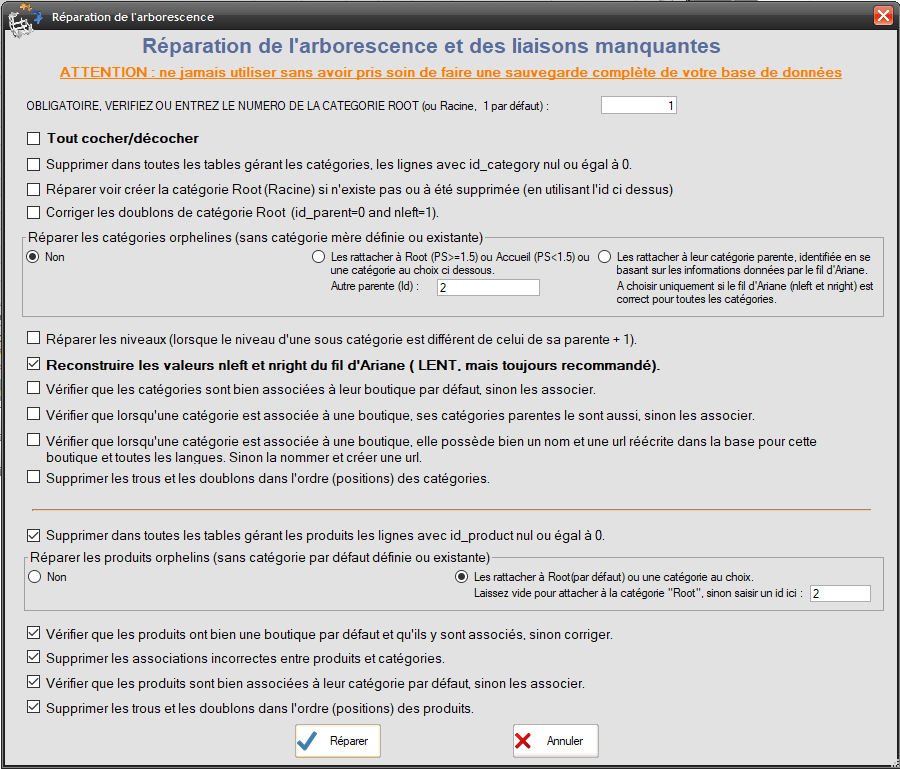
The ROOT category, invisible in PrestaShop but so essential
Most of the repair functions below need to know what PrestaShop's root category is.
This category only exists from PrestaShop versions 1.5 onwards and is mandatory. On a blank website, it is automatically created on installation and given the number 1.
But it can sometimes be deleted by mistake and recreated under a different number.
Internet stores migrated from older versions of PrestaShop already use the number 1 for their "Home" category. In this case, Root is created with another number or is sometimes missing.
What characterizes the root category:
- It has no parent category (id_parent = 0)
- Is at the very top of the structure, so its level is equal to 0
- His nleft value is equal to 1.
- All categories on the site are children or grandchildren of Root. This is why the nright value of the root category is necessarily greater than the nright value of all other categories.
- A healthy PrestaShop DB should contain one and only one such category.
- The root category is not visible, editable or repairable from the PS backoffice.
Merlin Backoffice has tried to identify this category for you. check that it's not wrong before going any further. If in doubt, consult the category tree, looking for the category whose id_parent is equal to 0 and and nleft equal to 1 and which in theory contains all the others.
If the information concerning this root category is incorrect (for example its nright value), nevertheless indicate its identifier in the 1st field and check the second repair option below.
Delete rows with id_category zero or equal to 0 from all tables managing categories
.
Any valid category has a non-zero id. Rows with id equal to zero or empty are inconsistencies and will be deleted.
The cleaned tables are: category, category_lang_category_shop, category_product, category_group.
Repair see create Root category if doesn't exist or has been deleted (using id above)
This action will give the category you chose above the correct id_parent (0), level (0), nleft (1) and nright (the largest of the values+1) values so that it becomes the site's root category, and therefore contains all the other categories.
Correct Root category duplicates (id_parent=0 and nleft=1)
It may happen that the category list contains several categories that meet the criteria defining the "Root" category (id_parent=0, level=0 and nleft=1). However, PrestaShop can only work with a single category of this type.
If this option is checked, only one root category (the one indicated in the first field) will be retained. The others are kept but transformed into sub-categories of the root category.
Separate orphan categories (with no defined or existing parent category)
Allows you to attach to the tree structure categories that have no parent category (id_parent = 0).
You can either attach them to the root category, or to another category of your choice (enter its number), or trust the values of the nleft and nright columns (breadcrumb trails), to find the true parent category and attach it to it.
For Prestashop versions before 1.4: the third option is grayed out. And you must specify the number of the parent category yourself (there is no such thing as a "root" category or nleft and nright headings).
Separate levels (when the level of a sub-category is different from that of its parent + 1).
The "level" and "parent" values must be consistent. The level of a category must always be equal to that of its parent category plus one.
This option recalculates all "level" values to respect this constraint.
Reconstruct breadcrumb nleft and nright values ( SLOW, but still recommended).
The nleft and nright values are essential to the correct operation of PrestaShop from version 1.4 onwards, and even more so to Merlin Backoffice.
Their calculation and operation is quite complex, but must be performed for all categories, as soon as one is added, deleted or moved.
Merlin Backoffice performs this calculation invisibly, whenever necessary.
If these values are incorrect for one or more categories, they will either be missing or incorrectly displayed in the trees (in the wrong place) and any move or cloning operation doomed to failure.
This option, when checked, therefore allows you to manually rerun the complete calculation of these values.
Check that categories are associated with their default store, otherwise associate them.
Each category has one and only one default store declared. In addition, it must always be associated with the latter.
This option therefore allows you to check that each category is indeed associated with its default store, and to correct the association line if this is not the case.
Check that when a category is associated with a store, its parent categories are too, otherwise associate them.
A category can be associated with several stores, but it must only be associated if its parent category is too.
This option will therefore, for each category, check that all its parents, up to the root are associated with the same stores as it and create the missing associations.
Check that when a category is associated with an internet store, it has a rewritten name and url...
To be correctly displayed in the tree structure, each category must have a name for each associated store, and this for each language installed in PrestaShop.
This option makes it possible to give a generic name wherever they are missing.
Also, each category page must obligatorily have a simplified URL. If it's missing, Merlin will rebuild it from the category name.
Remove holes and duplicates in the order (positions) of categories.
The child categories of a category are ordered according to the "position" value assigned to each (from PS 1.4 only).
It may happen that values are missing from these series (e.g. 1,2,4,5). Although this does not disrupt PrestaShop's operation, it may slow it down slightly. This script removes the gaps (e.g. 1,2,3,4).
Depending on PS versions, the counter starts at 0 or 1.
Delete any rows with id_product zero or equal to 0 from all tables managing products.
Any valid product has a non-zero id. Rows with id equal to zero or empty are inconsistencies and will be deleted.
The tables cleaned up by Merlin are the vast majority of those containing id_product.
Separate orphans (with no default category defined or existing)
An orphan is a product that is not attached to any category. Most of the time it will be difficult if not impossible to display them in PrestaShop and in Merlin without first repairing them with this tool.
This option therefore allows you to attach to the tree structure all those that have no default category.
You can either attach them to the root category, or to another category of your choice (enter its number).
Check that products have a default store and are associated with it, if not correct.
Every item must have one and only one default store and be associated with it.
If this is not the case, the program will give them the one in their main category.
This option therefore also allows you to check that each item is indeed associated with its default store, and to create this association if it is missing.
This allows you to list those that may remain invisible if they are not associated with any shop, so that you can modify, move, delete etc.
Delete incorrect association lines.
A product can be associated with many categories.
When a category is deleted, the associations to its associated products must also be deleted. Similarly, when a product is deleted, its associations must also be deleted. But these deletions carried out via the back office officile or with other external tools sometimes result in incomplete clean-ups.
This option therefore deletes from the product/category relationship table all links between categories and products that no longer exist.
Check that products are associated with their default category, otherwise associate them.
Each product must have one and only one so-called main or default category.
In addition it should always be associated with the latter (although breaking these relationships apparently doesn't cause malfunctions and may be intended in certain special cases).
This option therefore allows you to check that each item is associated with its default category, and to add the association line if it's missing.
Note: this function is inactive for versions prior to PS 1.4.7.0 for a technical reason linked to table structure.
Remove holes and duplicates in the order (positions) of files.
Products associated with a category are ordered according to the "position" value assigned to each.
It may happen that values are missing in these series (e.g. 1,2,4,5). This has no effect on site operation, but it's not clean and can cause slowdowns.
This script removes the gaps (e.g. 1,2,3,4).
Depending on the PS version, the position counter starts with 0 or 1.
Which method to follow, check everything and fix everything?
The quickest and easiest solution is in fact to click on the "Check all" box to activate all the options and thus perform a complete check-up of the database.
This works well and to our knowledge has never messed up a single site.
However, we recommend proceeding in stages and with a bit of logic instead.
If, for example, you encounter problems displaying categories or breadcrumb trails, it's not necessarily worth repairing their content.
Checking only those options that you feel might have a link with a bug or malfunction you've encountered, allows you to verify your hypothesis and therefore improve your own expertise and understanding of the structure and operation of the PrestaShop database.
Category's other articles How to repair and clean PrestaShop
-
Eviter et réparer les doublons dans PrestaShop
How to
Video
Tutorial showing how to prevent or correct all types of duplicates in PrestaShop. Duplicate products, variations, attributes, features or photos